
Product Updates
Update Your KPI with a Past Date
What’s new?
You can now add an older date for your KPI updates.
Why it’s important
Don’t let missed updates leave gaps in your reporting. Use the backdate feature to log past performance accurately, add the context your team needs, and keep your KPI data complete and meaningful.
How to use it
1. From the homepage, navigate to your dashboard where your KPIs are displayed.
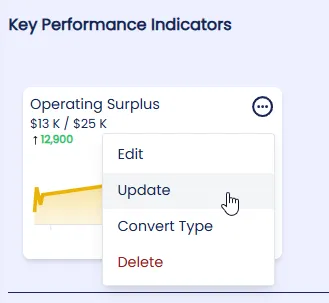
2. Click the KPI edit icon and select “Update” from the menu.
3. In the update screen, enter the date the entry should be recorded for, using the calendar tool or typing it directly.
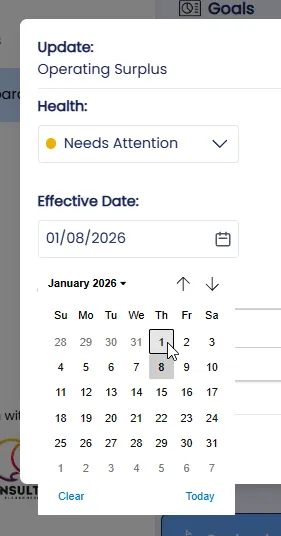
4. Set the health status that reflects performance at that time.
5. Write a comment explaining the context for that period. This is included in reporting and helps stakeholders understand why a KPI was particularly high, low, or usual.
6. Click Save. The KPI will update. Click on the KPI title to view the chart and history.
Here’s a video demonstrating how to do it:
Closing
Now’s a great time to fill in the gaps in your KPI history so your dashboard reflects an accurate picture of performance.