
Product Updates
Reorganize Mode for Objectives, Key Results, and Initiatives
What’s new
Reorganize Mode allows you to move around your Objectives, Key Results, and initiatives. This replaces the Reorder button on your goals dashboard with a more robust tool that controls both order and goal type in the same interface.
Why this matters
Instead of deleting and re-adding them to each section, you can just drag and drop to move them around.
How to Use it
From your homepage, click on Dashboard in the menu on the left, where you can see all the Objectives, Key Results and initiatives that you’ve entered already. Your user type must be Admin or Consultant in order to do this.
Next to the Add Objective button, there’s a new button called Reorganize.
Click that to show your items in Reorganize mode.
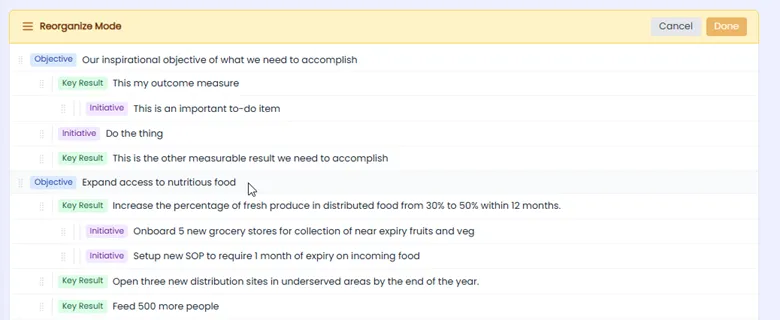
Grab your row by the little dot icon on the left, and drag to move it up or down to reorder.

Drop it into the thin blue re-ordering line, or onto the Object or Key Result title if you want to make a child of that title.
Pro Tip: Cursor movement must be precise

Reordering interface
You’ll see little messages:
· Reorder here
· Make Child of [this Objective or Key Result title]
If your drag and drop will result in changing the type of item (ie. Key Result will become an Objective), you’ll see the Convert Type screen to confirm that you want to make the change. Click Apply or Cancel accordingly.
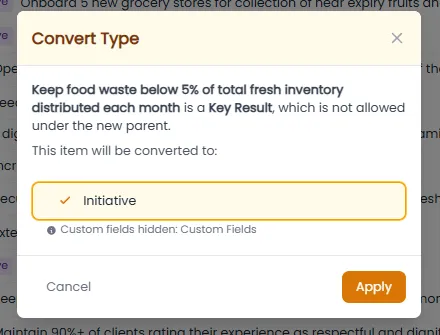
Convert Type Screen
When you’re done, in the yellow bar at the top of reorganize mode, click the Apply Change or Cancel button.
Note: Your changes are not permanent until you hit the Apply button. Hitting cancel will revert any changes made.

This video will show you how:
Note: since an initiative can live under either a key result or an objective. If you want to reorganize an initiative into a key result, it’s a two-step process:
- Move it to that tab level from within Reorganize Mode. Hit Apply Change
- On the Dashboard screen, click the circle dots icon to edit, select Convert Type and you’ll see the Convert Type screen to Apply the changes.
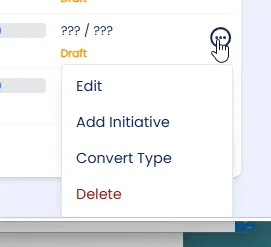
Edit to Convert Type
Closing
This update is designed to make your strategic goals easier to organize and to save you time. If you want help setting up your dashboard, please reach out to our team.