
Product Updates
New user roles for team dashboards and new ways to add team members
Setting up a team with their own dashboard can help a large organization manage multiple strategic plans, while also having the main plan show progress at the organization level.
This guide covers setting up a team, adding members through the Users page, and assigning team-specific roles. It also explains how Team Admins and Standard members differ in managing goals, how to view team dashboards and activity, and how non-admins can invite members or request new users from within their team’s Members tab.
Step by Step Guide
- Confirm that Teams is enabled for your organization. Teams are included in Tier 2 and Tier 3, so if you don’t see them, contact StratSimple to have them enabled.
- Click your profile picture or initials, and select Org Settings. This is available for Admin users only.
- Select Teams from the menu on the left side. Then click Add Team.

- Enter a name for the team, for example Resource Development Team.
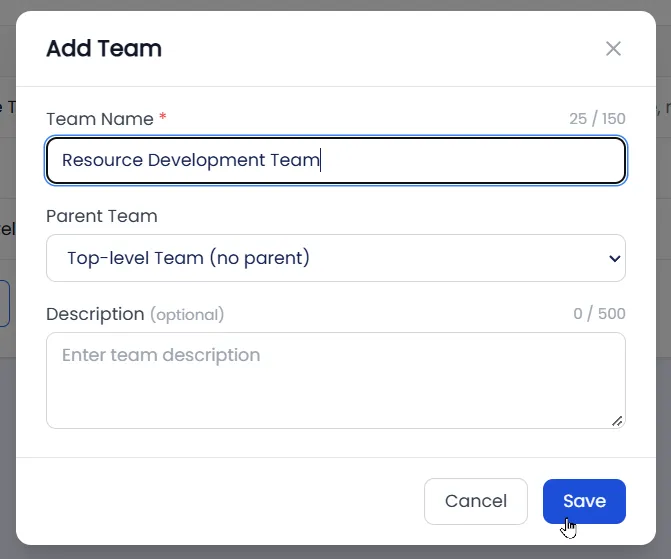
- Choose whether the team will be a top-level team or part of another team.
- Enter a description if needed.
- Click Save. The new team now appears in your Teams list, and you can edit it at any time.
- To add members as an admin, go to the Users page.
- Find the team member you want to add, click Edit, and add them to the new team. A person can be a member of multiple teams.
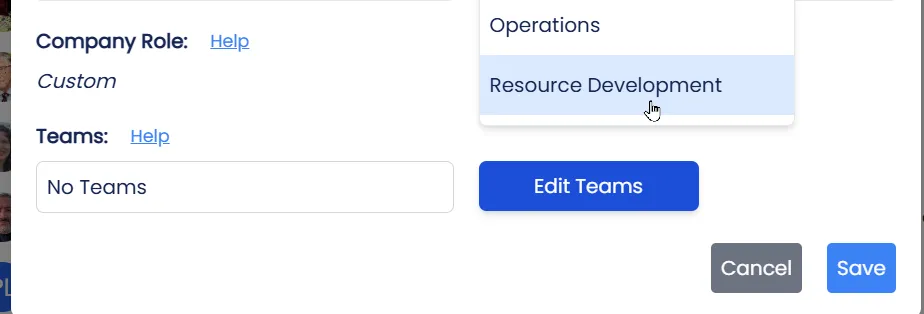
- Save your changes.
- Teams can be found on the main dashboard page. Members see the teams they belong to, and admins see all teams. Admins can also view the full team hierarchy.
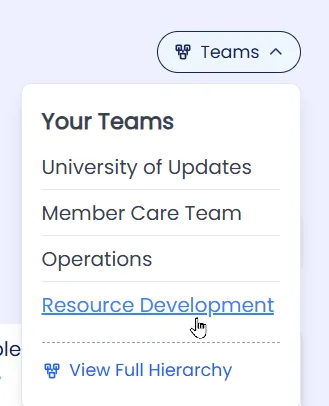
- On the team dashboard, click the Members tab to assign member roles.
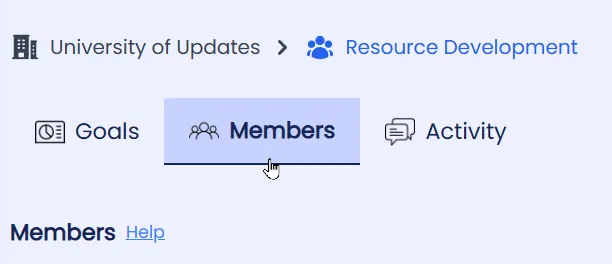
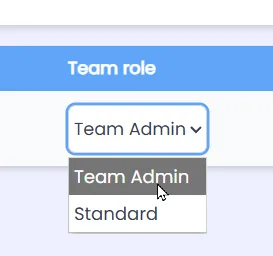
- Assign each member a role if needed. A Team Admin can add, edit, and update any goals on their team dashboard, but not on the main dashboard. A Standard member can only add, edit, and update goals assigned to them on the team dashboard.
- To make someone a Team Admin, update their role. You can also use the toggle to allow them to view reports, or remove them from the team if needed.
- If you are a team admin but not an org-level admin, click Invite to Team to send a request to the org-level admin. Start typing the person’s name and assign their desired role.
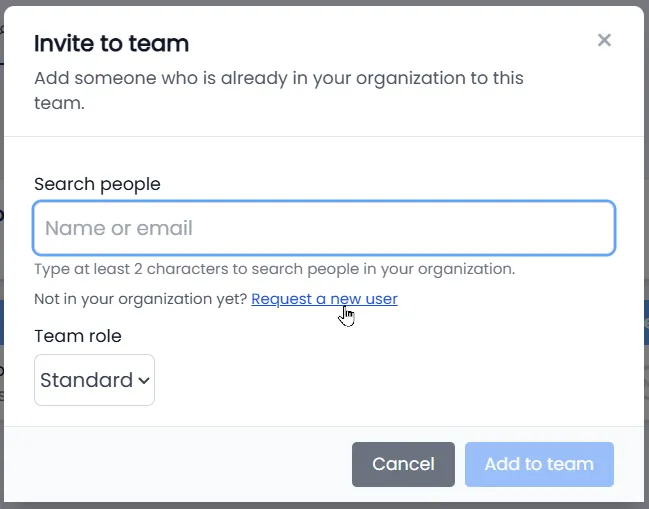
- If the person isn’t a user in your organization yet, click Request New User and enter their information. This sends a request to an admin, who can add the user so they can then be added to the team.
- Click back on the Goals tab to see the dashboard for the team, and then click the Activity tab to see activity for the team.
Here’s a Video Tutorial Showing How
Pro Tip
Objectives on the team dashboard can be tied to objectives on the main dashboard to demonstrate the connection between the team’s priorities and the organization-level priorities. The “Relationships” tab of the Team’s Edit Objective screen allows you to do this:

Closing Statement
Setting up teams and adding members helps everyone see how their work connects to the bigger picture. Use team-specific roles to give team leads full control of their own team’s goals without giving them edit access to the main dashboard. Only turn on the report-viewing toggle for members who need it. Since one person can belong to several teams, add cross-functional contributors to every relevant team.
With clear roles, dedicated team dashboards, and a flexible hierarchy, your organization can stay aligned and keep making progress toward its goals. If you have any questions along the way, the StratSimple support team is always happy to help at support@stratsimple.com.