
Product Updates
How to Use Templates to Add a Set of Questions to Multiple Surveys
What’s new?
The survey template feature is now available. This allows you to begin a new survey from a standard set of questions which were saved as a template.
Why it’s important
It’s designed to save consultants time by eliminating the need to re-enter frequently used questions for every new survey.
How to use it
Note: You’ll need to have consultant user status or have custom permissions added to create and edit templates.
1. Create a Template:
There are two ways to create a template: Copy it from an existing survey OR create it from scratch.
To create a template by copying it from an existing survey:
Click on Survey in the main menu on the left, and either create or locate the survey you want to use as a template.
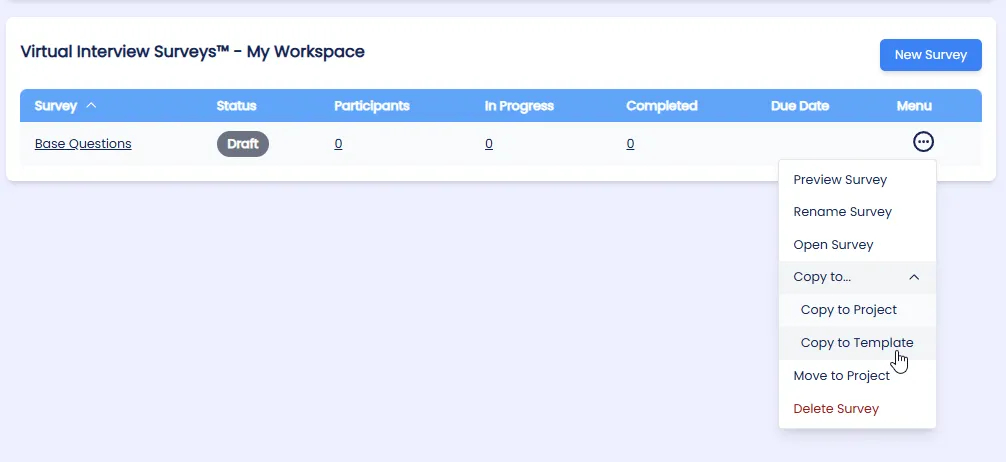
Click the Edit button next to the survey name, then select Copy to and the Copy To Template. Give your template a name and click Create Template.
To create a template from scratch:
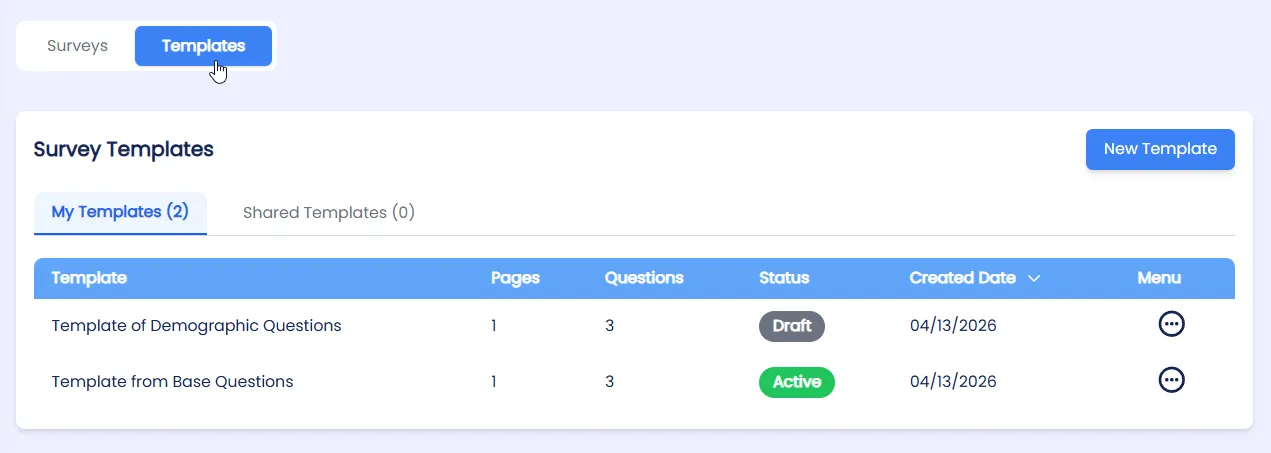
Click on Survey in the main menu on the left, and then click the Template toggle at the top

Click New Template. It will prompt for a Template Title, which you enter, and then click Create Template.
Add questions to your template. The interface is similar to the survey questions interface. You can also edit your template questions later, just like with a survey.
2. Publish Your Survey
When you are ready, click on the Template name in the list to view it, and then click the publish tab.
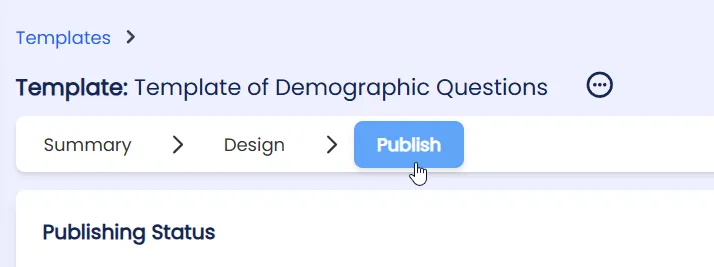
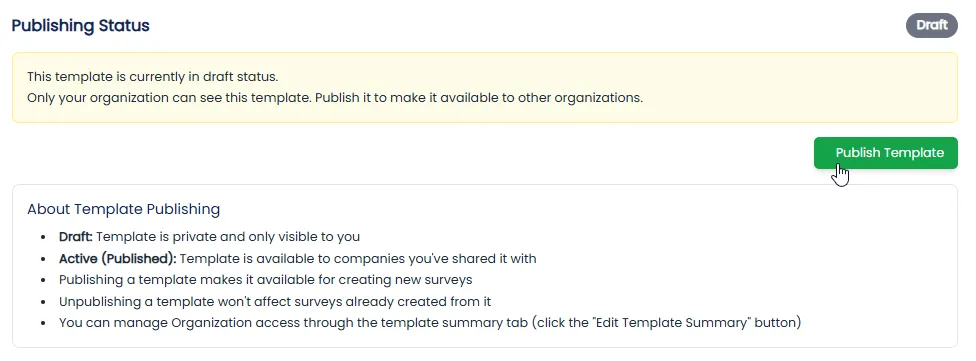
You can review the design and then hit publish to activate the Template. You add other organizations to share to in Step 4, below.
3. Create a Survey from a Template:
To create a new survey from your template go to Surveys and select New Survey. Then choose the radio button for From Template.
Choose your template from the list and it will be created and populated with your template questions.
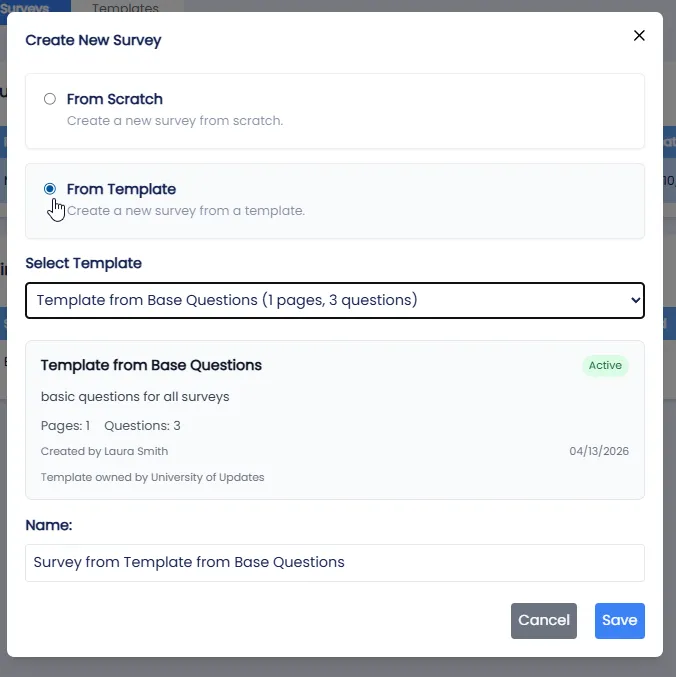
Customize the survey name and add any additional questions or pages as needed through the usual Survey Design tab. Changes to the survey questions do not affect the Template itself.
4. Share Your Template to Your Other Organizations and Create Surveys There
This only works if you have multiple organizations with access set up in StratSimple.
To share a template with another organization go to back to the Templates area and select the template title that you wish to share.
Click Edit Template Summary and choose the organization you want to share it with from the list. These are the Organizations that you have access to. Save your changes.
Switch to the other organization.
In the other organization, go to Surveys and click on New Survey, then choose the From Template option (See Step 3 above)
Select the shared template and name your new survey. Once saved you can go to the survey Design tab to see your pre-populated questions and continue building from there by adding new questions or pages.
Here’s a video demonstrating how to create and share templates.
Pro Tip
If you have a set of questions that you ask on every survey, use the template feature. Keep the base template lean and focused, then layer on customized questions after generating each new survey. This approach gives you consistency across engagements while still allowing flexibility to tailor each survey to its specific audience.
Closing
With survey templates at your fingertips, you can streamline your workflow and focus on what matters most — gathering meaningful insights from your organizations. Build your base questions once, share them across your teams, and spend less time on setup so you can dedicate more energy to driving real results.