
Product Updates
Filter Feature on the StratSimple Dashboard
What’s new?
The dashboard now has a filter feature so you can limit your view to a person, status, strategic pillar, or other variable.
Why it’s important
If your organization has many deliverables on the dashboard,filters help you focus on exactly what matters — for example, showing only items that are behind in progress, or surfacing everything owned by a specificperson.
How to use it
1. Start by clicking on your Dashboard.
Filters are most useful when your organization has many items listed.
2. Find the Show filters button to the far right of your strategic goals and click it to open the filter panel.

This will open up the Filter area
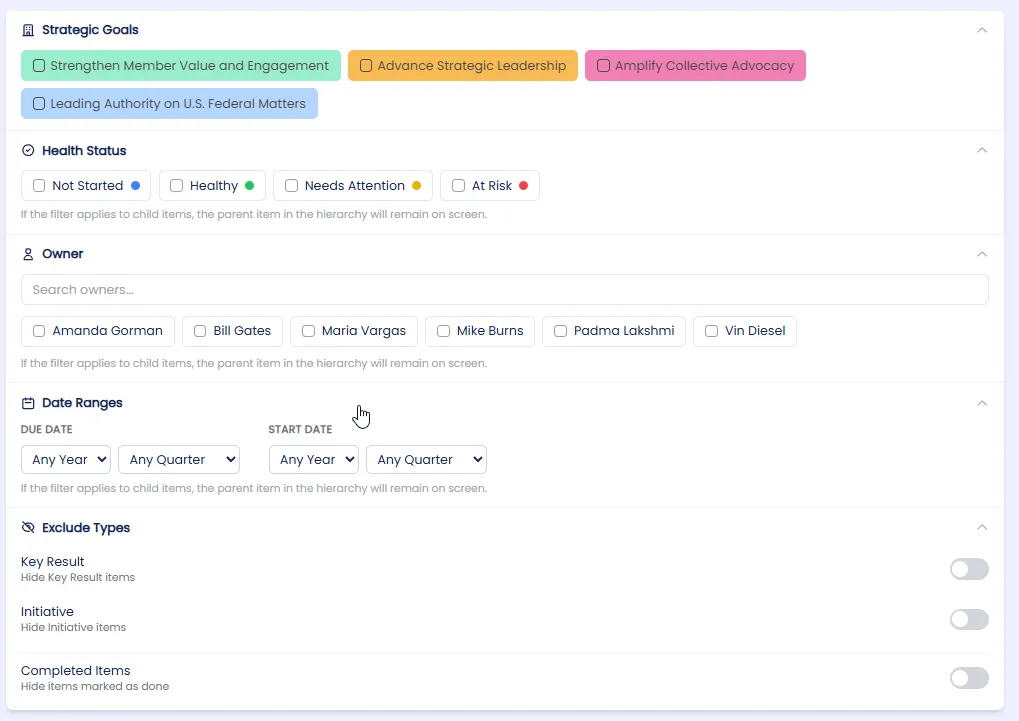
3. Select one or more filters, as needed. You can filter by: Strategic pillar, Health status, Owner, Date by year / quarter for either Due date or Start date.
You can also exclude deliverables by using the toggle buttons to hide key results, initiatives, or completed items.
4. Filters apply instantly as you select them. Toggle them on and off to compare views in real time. When a child item matches your filter, its parent item will also appear on screen to keep the full context of your strategic plan visible.
5. When finished, click Hide filters. A “filter active” indicator will show if any filters are still applied. To return to your full dashboard view, remove all active filters by clicking on the blue “Clear all filters” text at the bottom right of the filters section.
Here’s a video demonstrating how it works:
Closing
Filters bring focus to your strategic dashboard — quickly highlighting what matters most by pillar, owner, status, or timeline, and keeping your teamaligned on what needs attention most.