
Product Updates
Custom Fields for Data Tracking for Deliverables in the StratSimple Dashboard
What’s new?
Custom fields are now available in the organization settings. This allows you to add new fields within a container to any deliverable type that you have for a customer. The inspiration for this was a request to track budget. Think of it as a data point that you can track along with each objective, key result, or initiative, but it’s not a goal.
Why it’s important
This allows you to track a data point that is tied to an item on your dashboard. This could be a resource, person, or really anything.
How to use it
First, add the container, which is like the title of the section on the edit screen that will house your Custom Field.
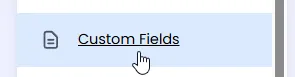
1. Under your Avatar (picture or initials), go to Org Settings, and then on the menu on the left select custom fields. You’re StratSimple login needs the Admin Role assigned in order to do this.
2. Click on Add Container.
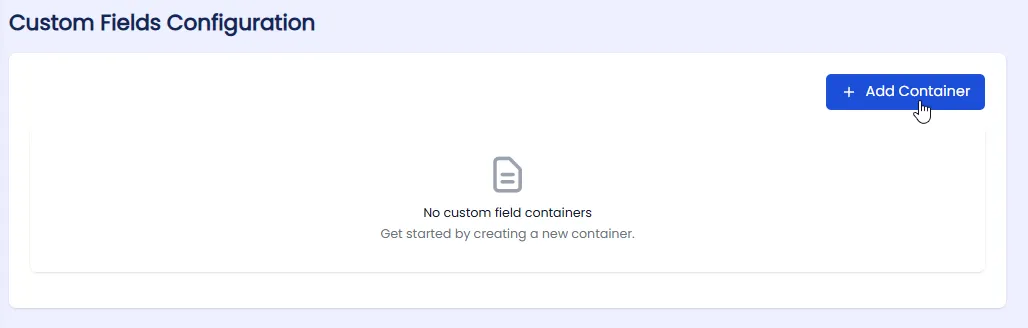
This opens the New Container screen.
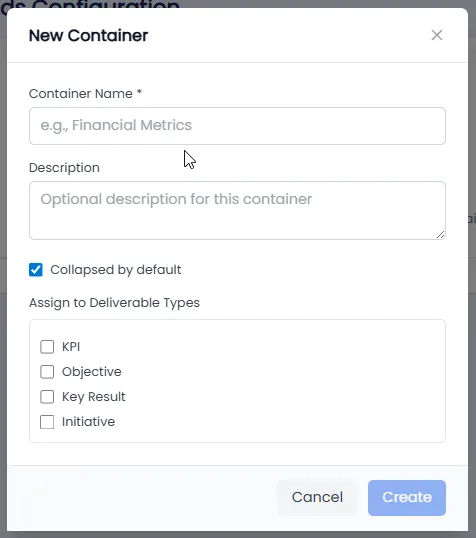
3. You can add name and description. The check box for “Collapse by default” determines whether or not this field’s information is automatically open when you go to edit the objective or key result or initiative. If you uncheck this then it will always be open in the interface.
4. Select which deliverable you want to tie this custom field to. This determines if it shows up on your edit deliverable screen.
5. Hit save when you’re done.
Then add the field name:
1. After saving the container, you can click the downward carrot to open the field editing section.

2. Then click on Add Field, which will open the new field editing screen.

3. Here you can add the name and an optional help text. Then select the field type. Field type can be:
· Single line text
· Rich text (which is a more advanced text editor)
· Currency
· Number
· Percentage
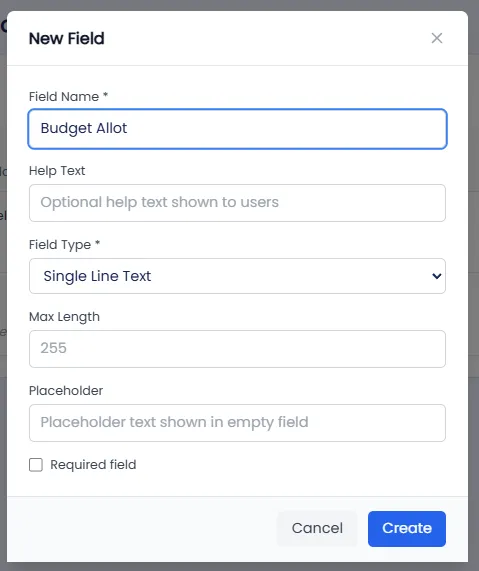
4. And you can control if it’s a required field or not.
You can add multiple fields per container and you can also add multiple containers.
Then go back to your dashboard to fill in your custom fields for each deliverable.
1. Click back to home and then to Dashboard.
2. Edit the deliverable that your custom field is tied to. In this example it’s an initiative.

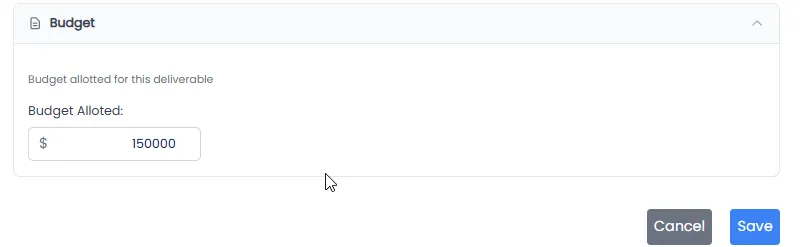
3. When you click on the carrot, it drops down and you can edit your budget amount.
Note that it’s only viewable when editing the deliverable that it’s associated with, or by clicking on the title of the deliverable, and viewing it on the delliverable screen.
Here’s a video demonstrating how to do it.
What’s next?
The next step for this feature is that it will be available on reports, estimated development by July 2026. Check back then for more info!
Closing
This field should help you track any details that you want in your strategic plan.