
Product Updates
Choose a Specific Day for Your Update Cadences and Email Reminders
Admins can now set goal update cadences to a specific day of the week or a specific day of the month, ensuring reminders align with each team’s unique workflow rather than a one-size-fits-all schedule.
What’s New
Due dates and email reminders used to be set by weeks and would follow a rolling schedule. Now update reminders can be set to specific days of the week or month so that everyone knows exactly when their goal is due next. Admins now have more control so that updates are entered in a more dependable schedule, and could be aligned to staff or board meetings.
Step by Step Guide
Note: Only Admin users have access to change this. Settings apply across the organization. For example, all monthly due dates will fall on the same day of the month that is set here.
Click on your profile picture in the top right corner.
Go to Org Settings.
Select Health and Cadence from the left-hand menu.
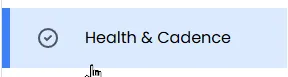
Find the Update Cadences section to manage due dates for each goal.
Click “Edit Cadences” to add or change them.

Click the frequency next to the schedule you want to edit.

Choose the day of the week, specific day, or other setting for the due date.
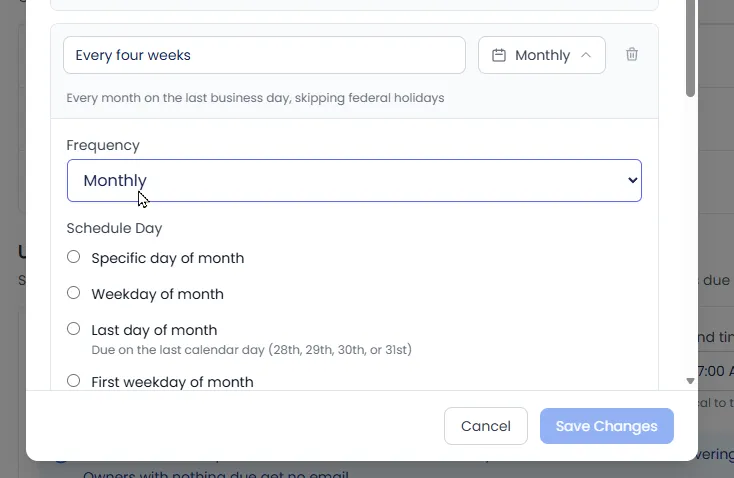
Click Save Changes.
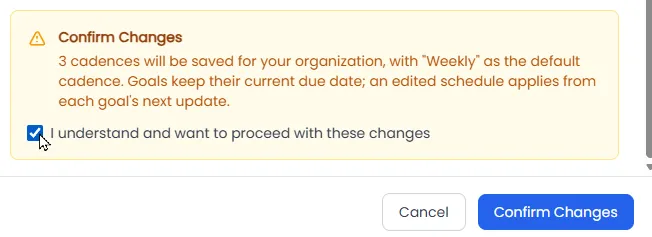
Scroll to the bottom of the edit screen and click Confirm Changes.
Next, use the Update Reminders section to schedule the email reminder digest.
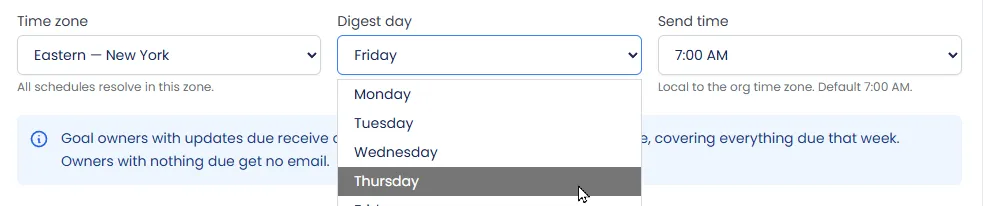
Choose the day of the week you want the email reminders sent out. The email includes goals that were due that week or overdue.
Click Save Reminder Settings if you made changes.
How to Video
Closing Statement
With this new flexibility to customize update cadences, teams can build a reminder rhythm that actually fits how they work, making it easier to stay on top of goals and keep everyone aligned. A small setup step today means smoother, more consistent updates going forward.
Pro Tip
When setting a monthly cadence, consider using an option like “last weekday of the month” instead of a fixed date. This ensures the reminder always lands on a working day, even when the month ends on a weekend or holiday, so nothing gets missed.