
Product Updates
About the Quarterly Report and How to Configure it
What the Quarterly Report Includes
The Quarterly Report PowerPoint is designed to organize team updates and progress into a board-ready presentation. It is a PowerPoint deck sent by email and provides a structured draft that users can edit, add to, or remove from as needed. The report begins with a summary of the organization’s statements. Depending on the selected configuration, this may include the vision statement, mission statement, pillars, objectives, values, annual goals, or KPIs.
The report also includes health indicator performance for the organization’s KPIs, if those are being used. It then provides a quarterly performance summary that shows the health status of objectives. If the organization has many objectives, this section may continue across multiple slides.
The final section of the report provides more detailed information about each objective and its key results. Each objective has its own slide with details that show what has been completed or updated for each key result. Overall, the Quarterly Report presents organization progress to the board or other leadership, combining organizational context, progress summaries, and detailed key result updates.
Step by Step Guide
To Configure Quarterly Reports:
Navigate to Org Settings, which is accessible only to admin users. On the left side menu, click on Reporting Configuration.
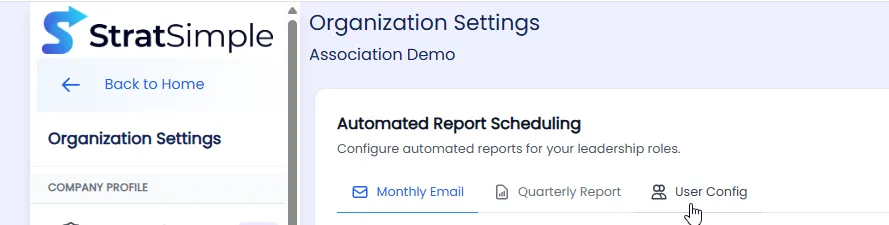
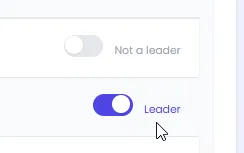
Go to User Config and toggle on the leaders who should receive the quarterly report. This list of leaders applies to both monthly and quarterly reports. If you have teams, a second section for team leaders will appear below the main list.
Click on the Quarterly Report tab to configure the schedule.
Select which month that your quarter ends on. Then select the day of the month and the time you want the report to go out.
In Advanced Configuration, set the look back period. You can use a traditional quarterly look at the last 90 days, or change the report style to monthly with a 30-day window if you prefer more frequent reporting.
If you are still setting up your dashboard and are not ready to send reports yet, set a future start date so emails will not begin sending until you are ready.
Click Save when you’re done.
Add additional recipients to this schedule by clicking Add Recipient, or you can add a new schedule for each.
Click pause to pause the report at any time. Then Activate again when necessary.
Next, return to the main page and go to Reports in the main menu.
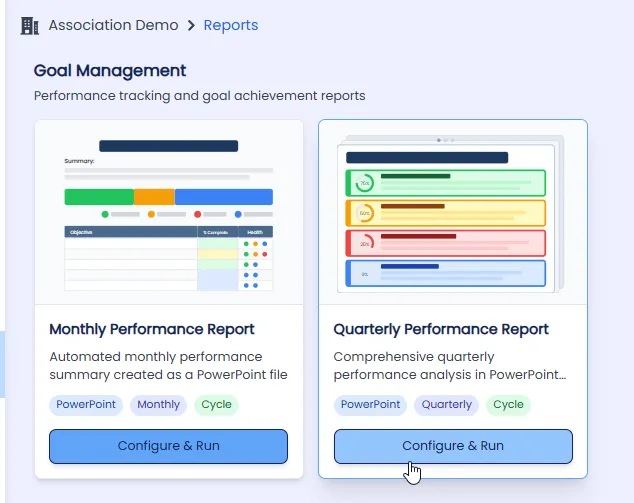
Click Configure and Run under the Quarterly Reports section
In the Advanced Configuration section, select your layout. This step is required. Choose a layout that matches your org page setup. Options include layouts featuring mission and vision statements, values or pillars, or annual metrics from the KPI section.
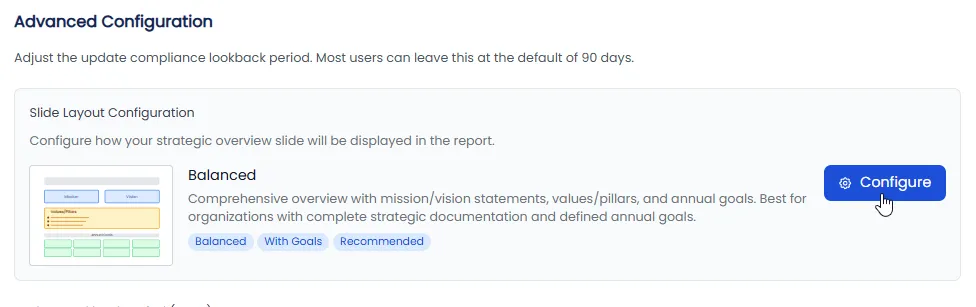
After selecting a layout, configure what appears in each section by choosing the content for each. A traditional setup would include mission, vision, and pillars.
Review your selection and click Save.
If you have teams, you can also select a configuration for the team report.
Choose whether you want the report to use a rolling 12-month timeframe or the traditional calendar year from January through December.
To view previously generated reports, go to Report History where you can see past automated or manually created reports and download any of them.
To generate a report immediately, click Generate Report on the Advanced Configuration tab. The report will be sent to your email and takes approximately 10 minutes to arrive.
Pro Tip
Make sure to select your layout in Advanced Configuration before expecting your first email. This step is required, and the report will not send without it. Also, if you are still building out your dashboard, take advantage of the future start date option so reports only begin going out once your data is complete and accurate.
Video Tutorial
Closing Statement
Configuring your Quarterly Report puts your team’s hard work front and center in a polished, board-ready format. With flexible scheduling, customizable layouts, and detailed performance summaries all generated for you, you can focus less on building presentations and more on celebrating progress and driving your organization forward.