
Product Updates
About the Monthly Email Reporting and how to configure it
What the Monthly Email Report Includes
The monthly email report delivers a comprehensive snapshot of your organization’s strategic progress right to your inbox.
At the top of the email, you’ll find a brief summary of the month’s progress. Below that, Quick Stats show the health status of goals by category. The report then highlights Key Achievements, calling out the things going really well, followed by Areas Requiring Attention, which flags where work is needed. To help you put these insights into action, the report includes suggested conversation starters that are perfect for kicking off staff meetings or one-on-ones around your strategic plan, along with questions for reflection and a suggested focus for the next period.
Attached to the email is a one-page PowerPoint summary slide showing overall performance, the percentage of objectives in each status category such as on track, needs attention, or at risk, the percentage of goal owners who have updated in the last four weeks (the goal is to be 80% or above!), and a list of your objectives with progress details.
Step by Step Guide
To Configure Monthly Performance Reports:
Click on your avatar in the top right corner of the screen, go to Org Settings and then Reporting Configuration from the menu on the left. You must be an Admin user type to do this.
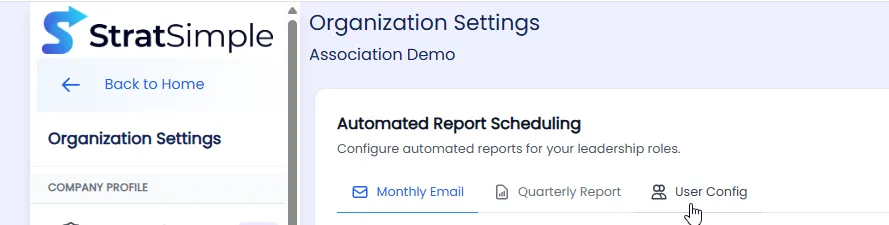
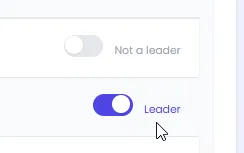
In the User Config section, select the users you want to receive the monthly and quarterly reports by toggling from ‘Not a Leader’ to ‘Leader.’
Click on Monthly Email, then select Configure and Schedule.
Click on ’ Configure Schedule, ’ and select who to add the schedule for.
Choose the delivery date and time details. And click Save.
To add additional recipients, edit the first schedule to add them to the same one. Or repeat the process to add a new schedule.
To Manually Run Reports:
To manually run a report, click ‘Back to Home’ to return to the main page’s menu. Then on the left, click Reports.
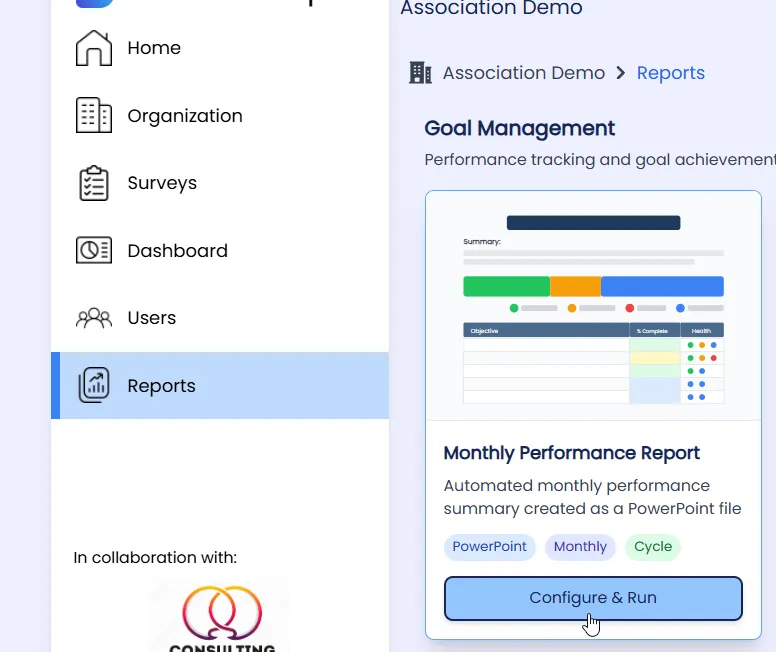
Then click the Configure and Run button.
Select whether you want a company-wide report or a team report and choose your time frame.
Optionally, use the advanced configuration to change the look-back period. The standard is 30 days for Monthly Reporting.
Click Generate Report to have it emailed to you within a few minutes.
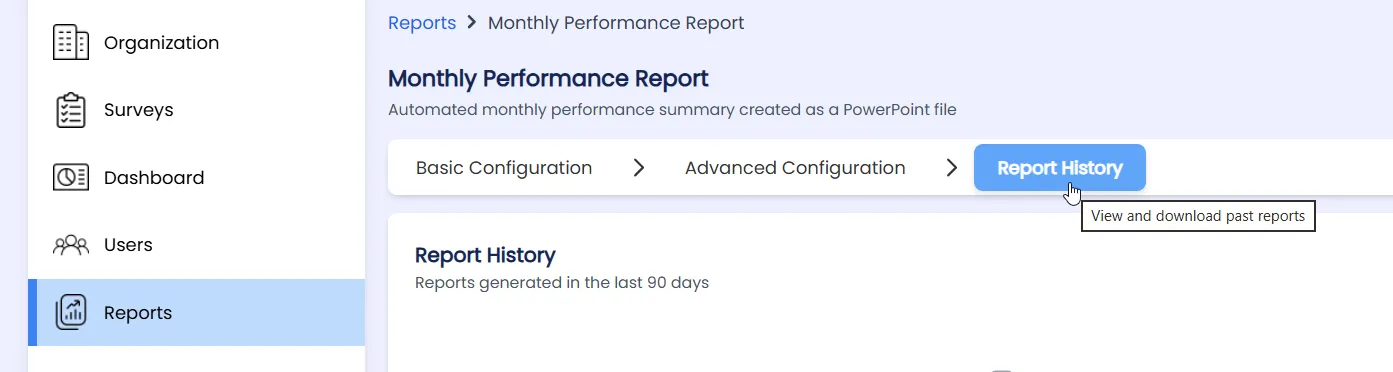
To view past reports, click on the Report History tab here to see automatically scheduled emails from the past, and manually generated reports. You can view and download them too.
Video Tutorial
Pro Tip
Set your monthly report to arrive a day or two before your recurring staff meeting or one-on-one sessions. That way, you can review the key achievements, areas needing attention, and suggested conversation starters ahead of time, walking into every meeting prepared and focused.
Summary
The monthly email report is designed to keep you informed and aligned with your strategic goals without having to go through every detail. By scheduling it once, you ensure that the right leaders have the insights they need to lead productive meetings and drive meaningful progress. Set it up today and let StratSimple do the heavy lifting so you can focus on what matters most — moving your strategy forward.